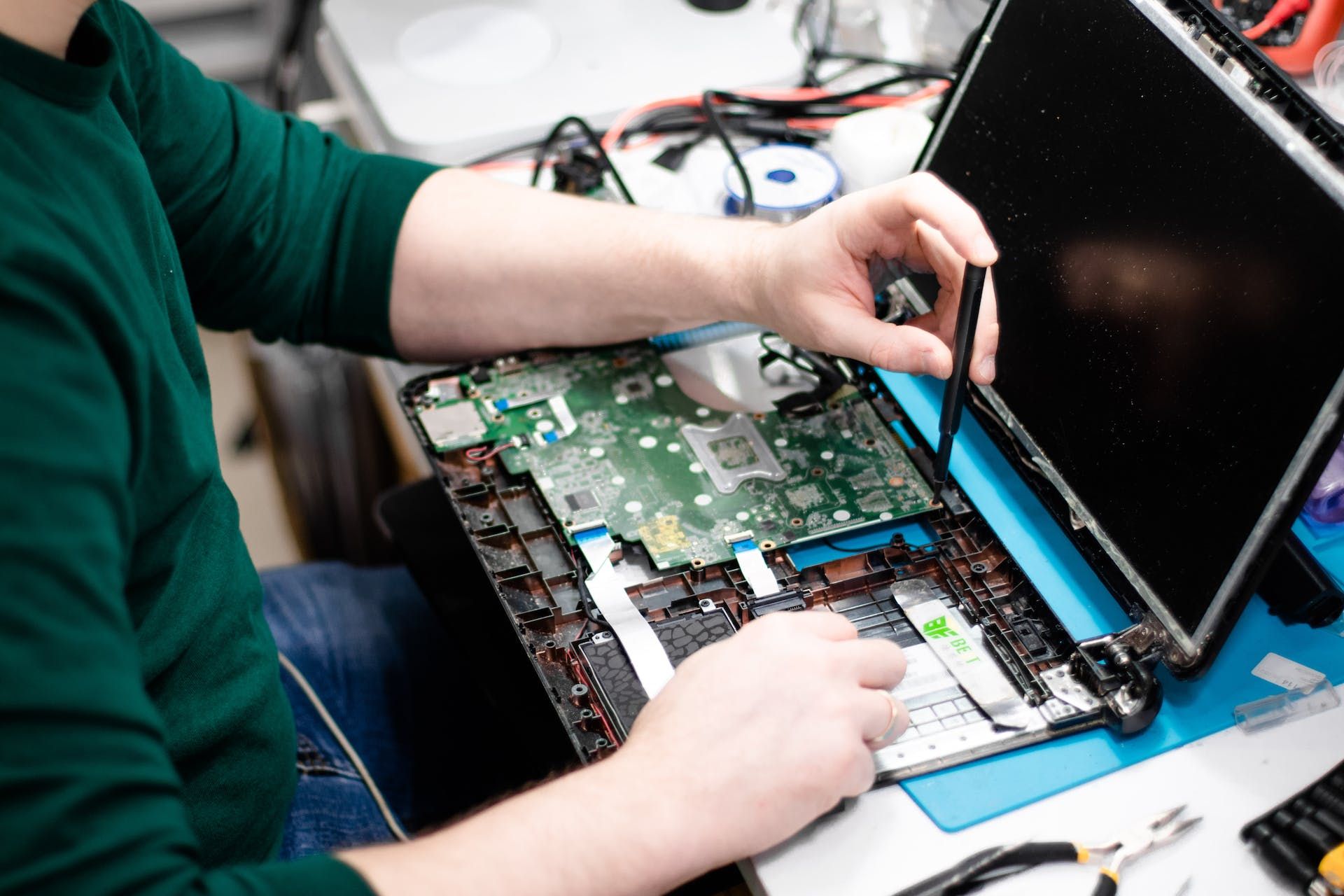
Is your MacBook battery dying in 2-3 hours instead of lasting all day? You're not alone. Battery drain is one of the most common MacBook issues we see at our Boca Raton repair shop. The good news? In many cases, you can fix it without replacing the battery. This guide covers 7 proven solutions from our Apple-certified technicians.
🔋 Quick Battery Health Check
Before trying solutions, check your battery health:
- Hold Option key and click the battery icon in menu bar
- Look at "Condition" - should say "Normal"
- Or go to: Apple menu > System Settings > Battery
- Check "Battery Health" - should be above 80%
If it says "Service Recommended" or "Replace Soon" and battery health is below 80%, skip to Solution #7 (battery replacement).
Solution 1: Identify Battery-Draining Apps
Some apps consume massive amounts of power in the background. Here's how to find the culprits:
Check Energy Usage (macOS Ventura & newer):
- Click Apple menu > System Settings > Battery
- Scroll down to see "Battery Usage by App" (last 24 hours or 10 days)
- Look for apps using more than 20% energy
Check Activity Monitor (all macOS versions):
- Open Activity Monitor (Applications > Utilities)
- Click the Energy tab
- Sort by "Energy Impact" (click the column header)
- Look for apps with "High" or numbers above 50
Common Energy Hogs:
- Google Chrome: Notorious battery drainer - try Safari instead
- Electron apps: Slack, Discord, VS Code can drain battery fast
- Video conferencing: Zoom, Teams, Google Meet use significant power
- Creative apps: Photoshop, Final Cut Pro, Logic Pro
- Cloud sync: Dropbox, Google Drive constantly syncing
💡 Pro Tip: Quit apps you're not actively using instead of minimizing them. Use Command+Q to fully quit, not just Command+W which only closes the window.
Solution 2: Reduce Screen Brightness & Enable Auto-Brightness
Your MacBook's display is one of the biggest power consumers. Small brightness adjustments make a huge difference:
Optimize Display Settings:
- Lower brightness manually: Use F1/F2 keys or Control Center
- Enable auto-brightness:
- System Settings > Displays
- Turn ON "Automatically adjust brightness"
- Reduce screen timeout:
- System Settings > Lock Screen
- Set "Turn display off after" to 5 minutes or less
- Use Dark Mode:
- System Settings > Appearance
- Select "Dark" - saves 30-40% battery on OLED displays
📊 Impact: Reducing brightness from 100% to 50% can extend battery life by 1-2 hours on average.
Solution 3: Disable Unnecessary Background Processes
macOS runs many background services that drain battery. Here's what to disable:
Turn Off Bluetooth & AirDrop (when not needed):
- Control Center > Turn OFF Bluetooth
- Control Center > AirDrop > Turn OFF
Disable Location Services for Unused Apps:
- System Settings > Privacy & Security > Location Services
- Scroll through apps - disable for apps that don't need your location
- Keep enabled only for Maps, Find My, Weather
Stop Automatic Background App Refresh:
- System Settings > General > Login Items & Extensions
- Remove apps that don't need to launch at startup
- Disable "Allow in the Background" for unnecessary apps
Disable Visual Effects:
- System Settings > Accessibility > Display
- Turn ON "Reduce motion"
- Turn ON "Reduce transparency"
Solution 4: Reset SMC (System Management Controller)
The SMC controls power management. Resetting it often fixes battery drain issues:
For MacBooks with Apple Silicon (M1/M2/M3):
Simply shut down your Mac and restart it. The SMC resets automatically.
For Intel MacBooks with T2 Chip (2018-2020):
- Shut down your MacBook
- Press and hold Control + Option + Shift (all on left side) for 7 seconds
- Keep holding and press the Power button for another 7 seconds
- Release all keys and wait a few seconds
- Press Power button to turn on MacBook
For Intel MacBooks without T2 Chip (2017 and older):
- Shut down MacBook
- Press and hold Shift + Control + Option (left side) + Power button for 10 seconds
- Release all keys at once
- Press Power button to start MacBook
💡 When to reset SMC: Battery draining fast, fan running constantly, power adapter not charging properly, or sleep/wake issues.
Solution 5: Update macOS & Apps
Outdated software often causes battery drain due to bugs and inefficiencies:
Update macOS:
- Apple menu > System Settings > General > Software Update
- Click "Update Now" if updates are available
- Restart after updating
Update All Apps:
- Open App Store
- Click "Updates" in sidebar
- Click "Update All"
Check Safari Extensions:
- Safari > Settings > Extensions
- Disable or remove extensions you don't use
- Some extensions constantly run in background
⚠️ Important: If you're running an old macOS version (macOS 11 Big Sur or older) on newer hardware, battery optimization may be poor. Update to latest supported macOS.
Solution 6: Optimize Battery Settings (macOS Monterey & newer)
macOS has built-in battery optimization features - make sure they're enabled:
Enable Optimized Battery Charging:
- System Settings > Battery
- Click "Battery Health" (MacBook must be plugged in)
- Turn ON "Optimized Battery Charging"
- This learns your charging patterns and reduces battery aging
Use Low Power Mode:
- System Settings > Battery
- Turn ON "Low Power Mode"
- Or click battery icon in menu bar > select "Low Power Mode"
Low Power Mode does:
- ✓ Reduces screen brightness
- ✓ Lowers processor speed slightly
- ✓ Pauses automatic iCloud sync
- ✓ Reduces visual effects
- ✓ Can extend battery life by 25-30%
Manage Power Adapter Settings:
- System Settings > Battery
- Expand "Options" section
- Turn ON "Prevent automatic sleeping on power adapter when display is off"
- This prevents battery drain during sleep when plugged in
Solution 7: Battery Replacement (When Software Fixes Don't Work)
If your battery health is below 80% or says "Service Recommended," it's time for a replacement:
Signs You Need a New MacBook Battery:
- ✗ Battery health below 80%
- ✗ MacBook shuts down randomly even with charge remaining
- ✗ Battery drains from 100% to 0% in under 2 hours with normal use
- ✗ MacBook only works when plugged in
- ✗ Battery is physically swollen (URGENT - stop using immediately!)
- ✗ "Service Battery" warning in menu bar
- ✗ MacBook is 4+ years old with original battery
MacBook Battery Replacement Cost (Boca Raton):
| MacBook Model | Battery Replacement Cost | Warranty |
|---|---|---|
| MacBook Air (2012-2017) | $129 - $149 | 90 days |
| MacBook Air M1/M2 | $149 - $179 | 90 days |
| MacBook Pro 13" (older) | $149 - $179 | 90 days |
| MacBook Pro 13" M1/M2 | $149 - $199 | 90 days |
| MacBook Pro 14"/16" M1/M2/M3 | $179 - $249 | 90 days |
💡 Battery Lifespan: MacBook batteries are designed for ~1000 charge cycles (3-5 years of typical use). After this, capacity degrades significantly.
Serving Boca Raton, Delray Beach & Boynton Beach: Get MacBook battery replacement at our Boca Raton shop (9146 Glades Rd). Same-week service, 90-day warranty, OEM quality batteries. Customers from Delray Beach and Boynton Beach drive to us for Apple-certified battery replacement.
Bonus Tips for Maximum Battery Life
Best Charging Practices:
- ✓ Keep charge between 20-80% for longest battery lifespan
- ✓ Unplug when fully charged (don't leave plugged in 24/7)
- ✓ Use original Apple charger or certified third-party
- ✓ Avoid extreme temperatures (don't leave in hot car)
- ✓ Let battery fully drain and recharge once a month (calibration)
Workflow Optimizations:
- ✓ Use Safari instead of Chrome (Safari is 2-3x more battery efficient)
- ✓ Download content for offline viewing instead of streaming
- ✓ Close browser tabs you're not using (each tab uses memory/power)
- ✓ Disable keyboard backlight or reduce brightness
- ✓ Use airplane mode when not needing internet
FAQ: MacBook Battery Drain
Why is my new MacBook battery draining so fast?
New MacBooks often experience high battery drain in the first week due to indexing, iCloud sync, and initial setup processes running in background. If it persists after 7-10 days, check for battery-draining apps in Activity Monitor or reset SMC. M1/M2/M3 MacBooks should easily get 10-15 hours with normal use once fully set up.
How do I check MacBook battery health?
Hold Option key and click battery icon in menu bar to see battery condition. For detailed info: System Settings > Battery > Battery Health (MacBook must be plugged in). Normal battery health should be above 80% capacity. Below 80% or "Service Recommended" means battery replacement is recommended.
Does leaving MacBook plugged in damage the battery?
Modern MacBooks (2016+) have optimized battery charging that prevents damage from staying plugged in. However, it's still best practice to unplug occasionally and let battery go through charge cycles. Enable "Optimized Battery Charging" in battery settings for best battery health.
Can I replace MacBook battery myself?
Not recommended. MacBook batteries (especially M1/M2/M3 models) are glued in and require specialized tools to remove safely. DIY battery replacement risks damaging the logic board or causing fire hazard if battery is punctured. Professional replacement costs $129-$249 and includes proper disposal of old battery.
Why does my MacBook battery drain in sleep mode?
This usually indicates either: 1) Apps running in background preventing true sleep, 2) Power Nap feature enabled (constantly checking email/updates), or 3) SMC issue. Try: Disable Power Nap (System Settings > Battery), reset SMC, or check Activity Monitor for apps preventing sleep.
Summary: Quick Action Plan
If your MacBook battery is draining fast, do this in order:
- ☑️ Check battery health (Option + click battery icon)
- ☑️ If health is below 80%, schedule battery replacement
- ☑️ If health is good, check Activity Monitor for energy-draining apps
- ☑️ Quit Chrome and use Safari instead
- ☑️ Reduce screen brightness to 50% and enable auto-brightness
- ☑️ Enable Low Power Mode
- ☑️ Reset SMC (especially if battery suddenly draining)
- ☑️ Update to latest macOS version
- ☑️ Disable Bluetooth, AirDrop when not needed
- ☑️ Monitor for 24 hours and see if battery life improves
Need MacBook Battery Replacement in Boca Raton?
Professional MacBook battery replacement by Apple-certified technicians. Same-week service, 90-day warranty, OEM quality batteries.
📍 UltraTechX - 9146 Glades Rd, Boca Raton, FL 33434 | Serving Boca Raton, Delray Beach & Boynton Beach